

Features
Preschool scheduling software.
Built for the daily scramble.
Live coverage, a Scheduling Assistant you can type to, one-move reassignment, and instant classroom alerts for the morning it all goes sideways.
Live Coverage Dashboard
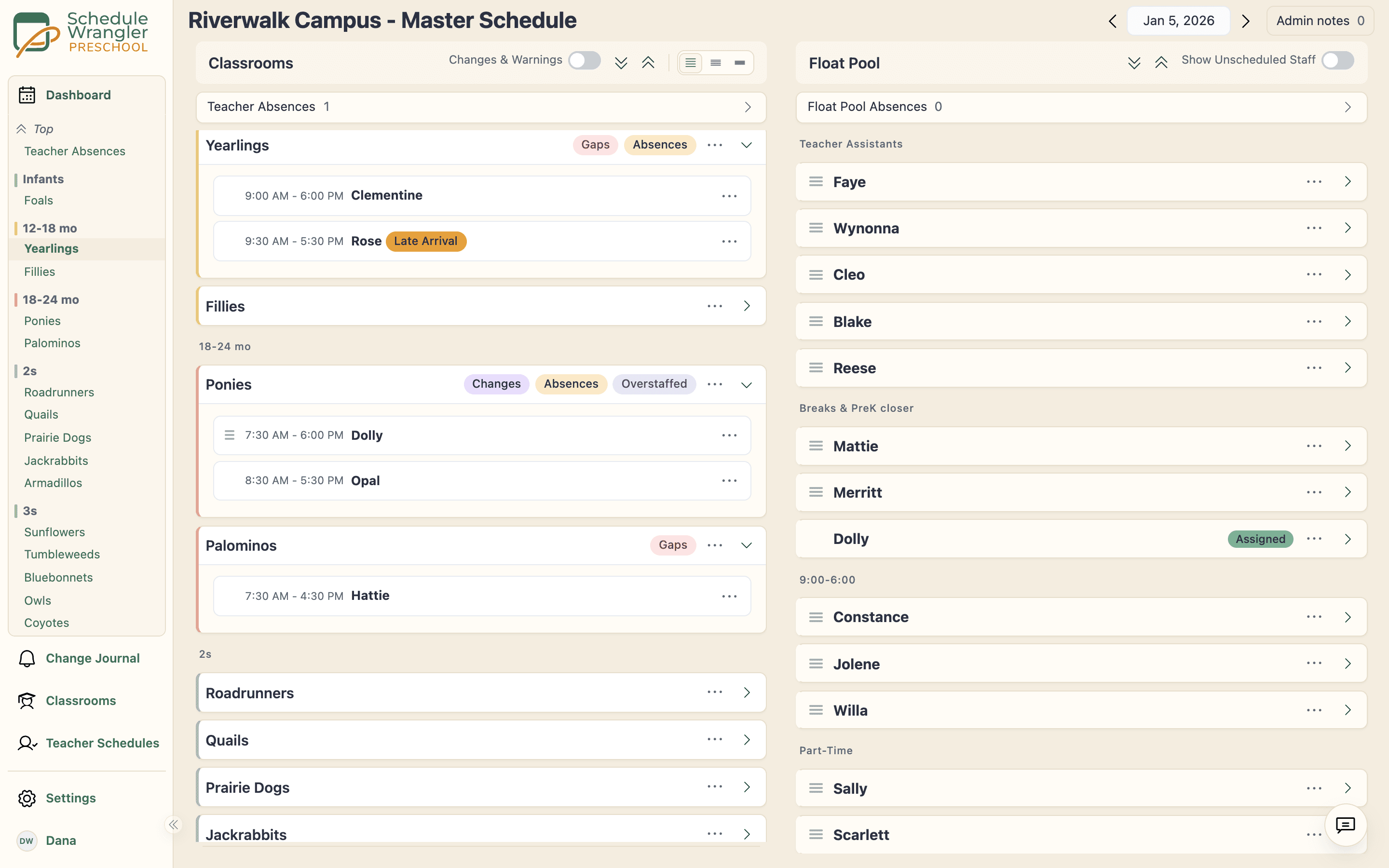
Your whole day on one screen, down to the half hour.
Every classroom on one screen, down to the half hour, because preschool arrivals don't line up on the hour. Gaps show in red, covered rooms fade, and the view updates the moment anything changes. You see only what needs attention.
- Gaps show in red and covered rooms fade back
- The view updates the moment anything changes
- You see only what needs attention
Scheduling Assistant
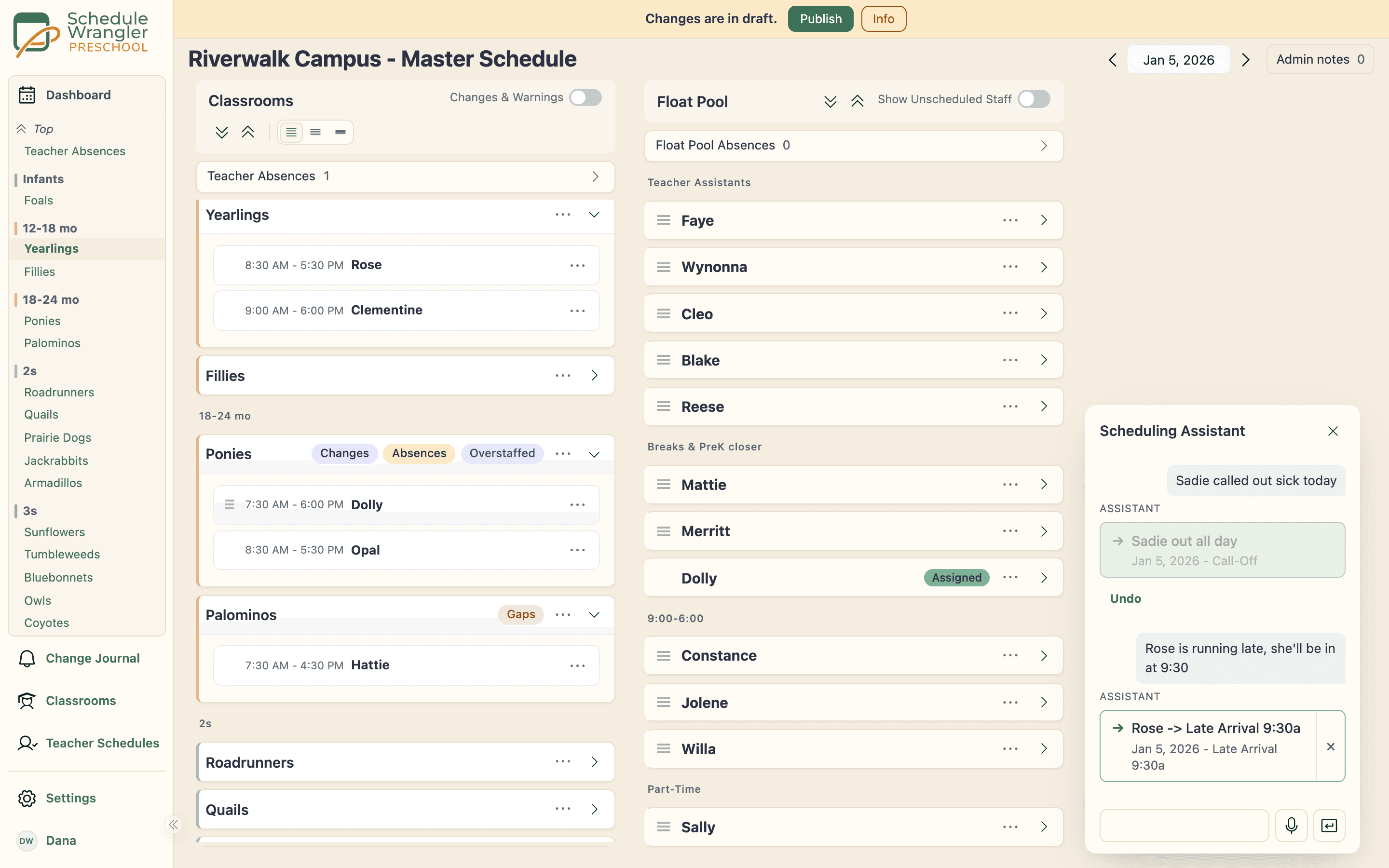
Tell it who is out. It proposes the changes.
Type a change the way you would tell a colleague: "Rose is out today, and Etta won't be in until 11." The Scheduling Assistant turns it into cards you review and apply, the same changes you would make by hand. It stays off until your school turns it on.
- Type who is out or running late, in your own words
- Review each proposed change as a card, then apply it
- A single full-day call-out for today applies on arrival, with Undo
- Off until an administrator at your school turns it on
Reassign in One Move
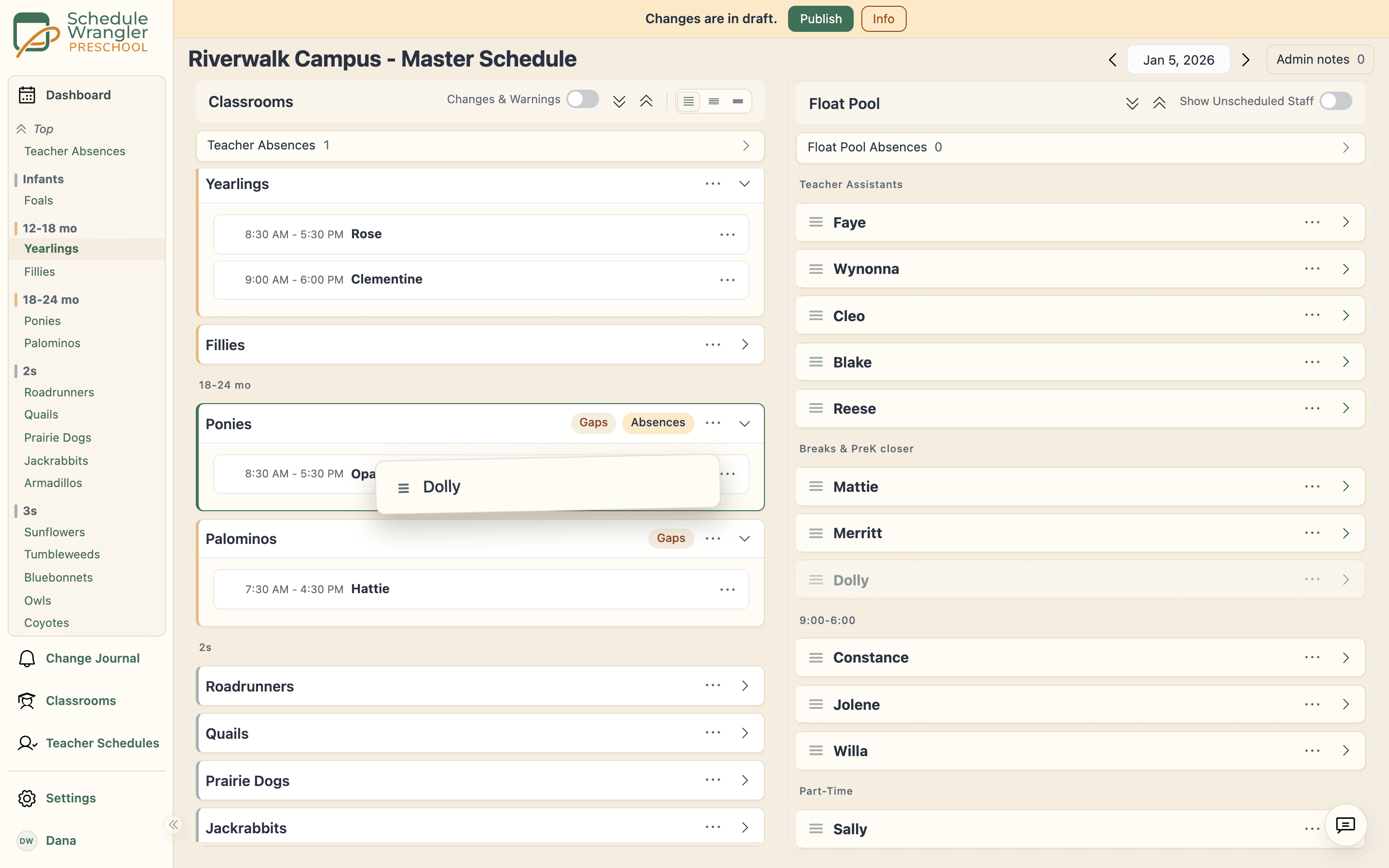
Cover a call-out without rebuilding the day.
When someone calls out, drag a name to fill the gap. The change lands on the classroom tablet. Done before the doors open.
- The change applies to today only, so tomorrow is untouched
- No one gets booked in two rooms at once, even across sites
- One tap undoes any move
Classroom Tablet Notifications
The right teacher knows, right away.
Reassign a teacher and the change shows up on the tablet in that classroom. A tap confirms it, and the confirmation comes back to the dashboard. No group text, no walkie, no walking the building.
The right teacher knows, right away.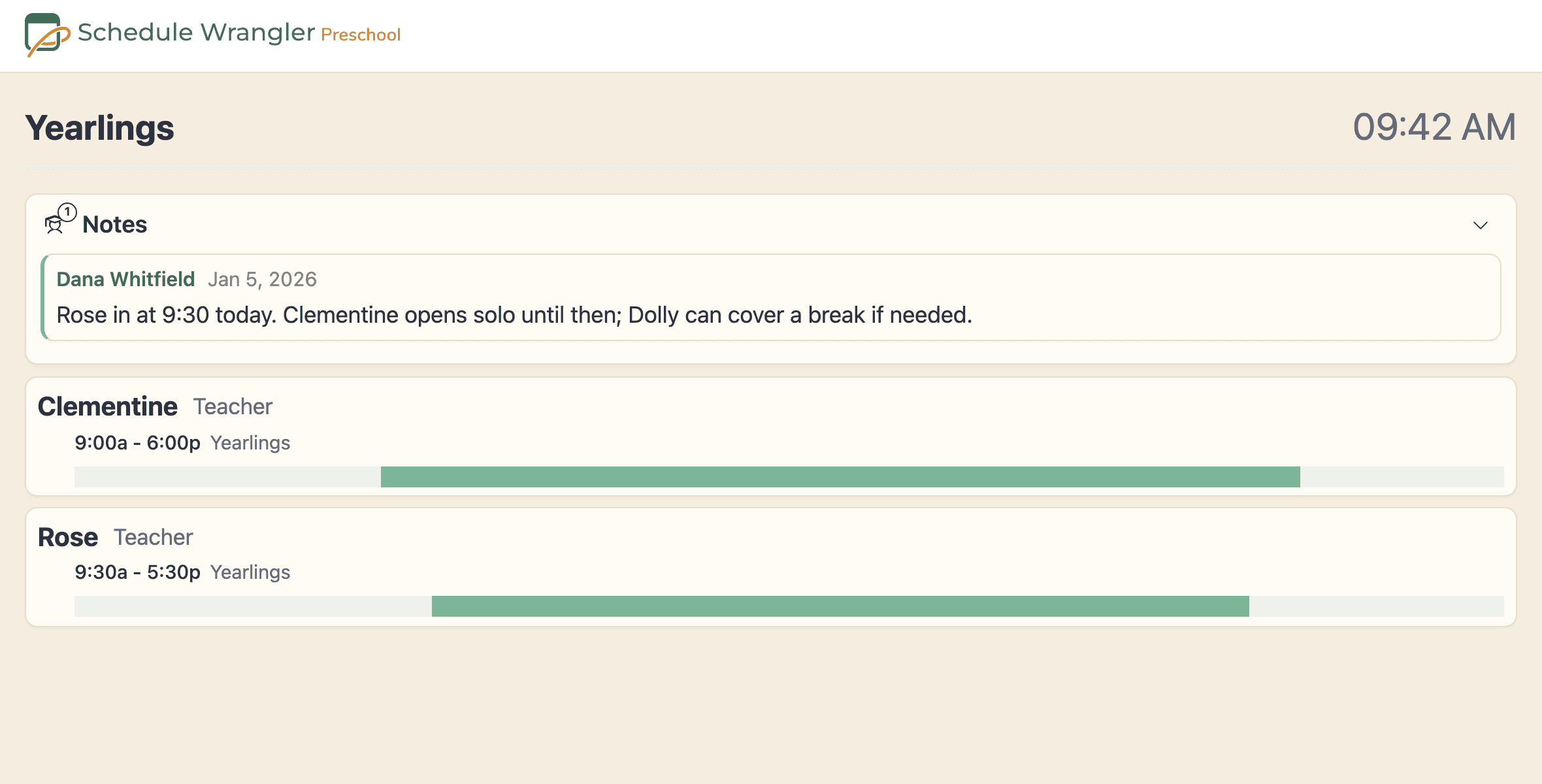
Organize, Publish, Notify
Organize the changes. Publish once. Everyone hears it.
Build a whole day's changes in a draft and watch the impact on the dashboard as you go. Nothing reaches staff until you publish, so you can work through cascading changes with no notifications firing. Then publish once, and every affected teacher hears it.
- Build a whole day of changes in a draft
- Nothing reaches staff until you publish
- Publish once and every affected teacher hears it
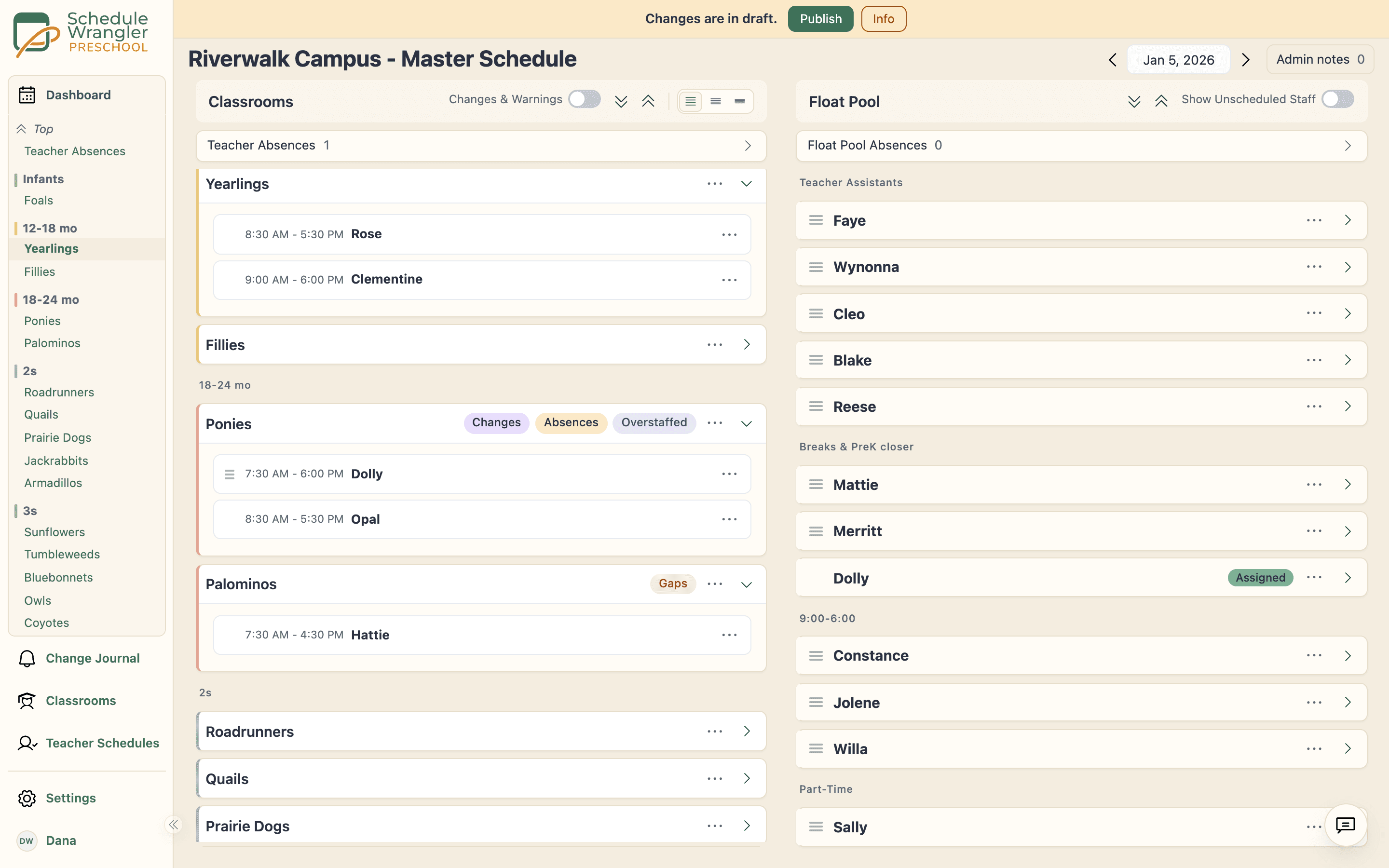
Everyday Adjustments in One Step
The moves you make every morning, in one step.
Set up the coverage moves you make every morning, then drop one in when you need it. Making the assignment writes and posts its note in the same step, so the room sees the why next to the who.
The moves you make every morning, in one step.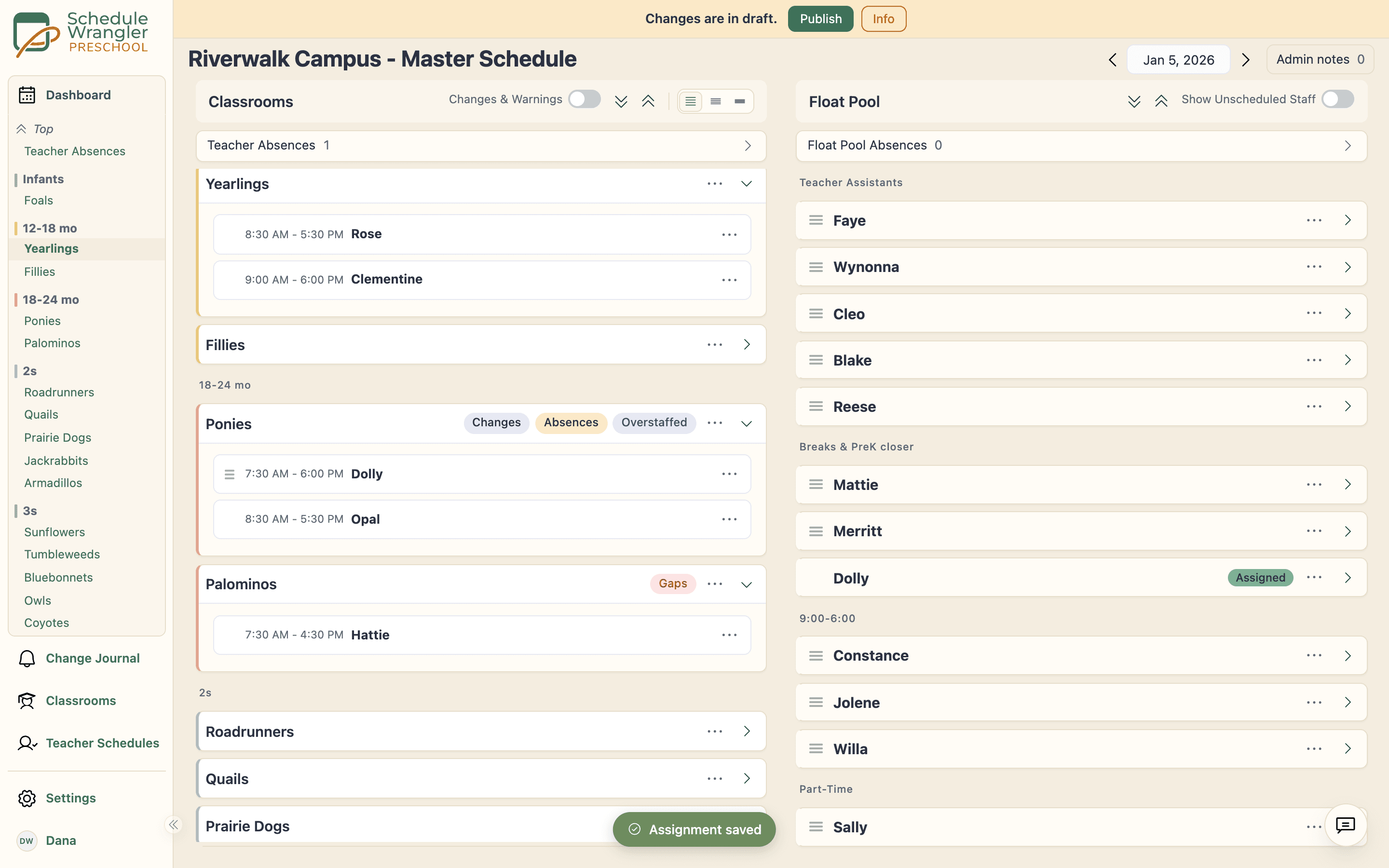
Notes That Carry the Context
Put the context where the room will see it.
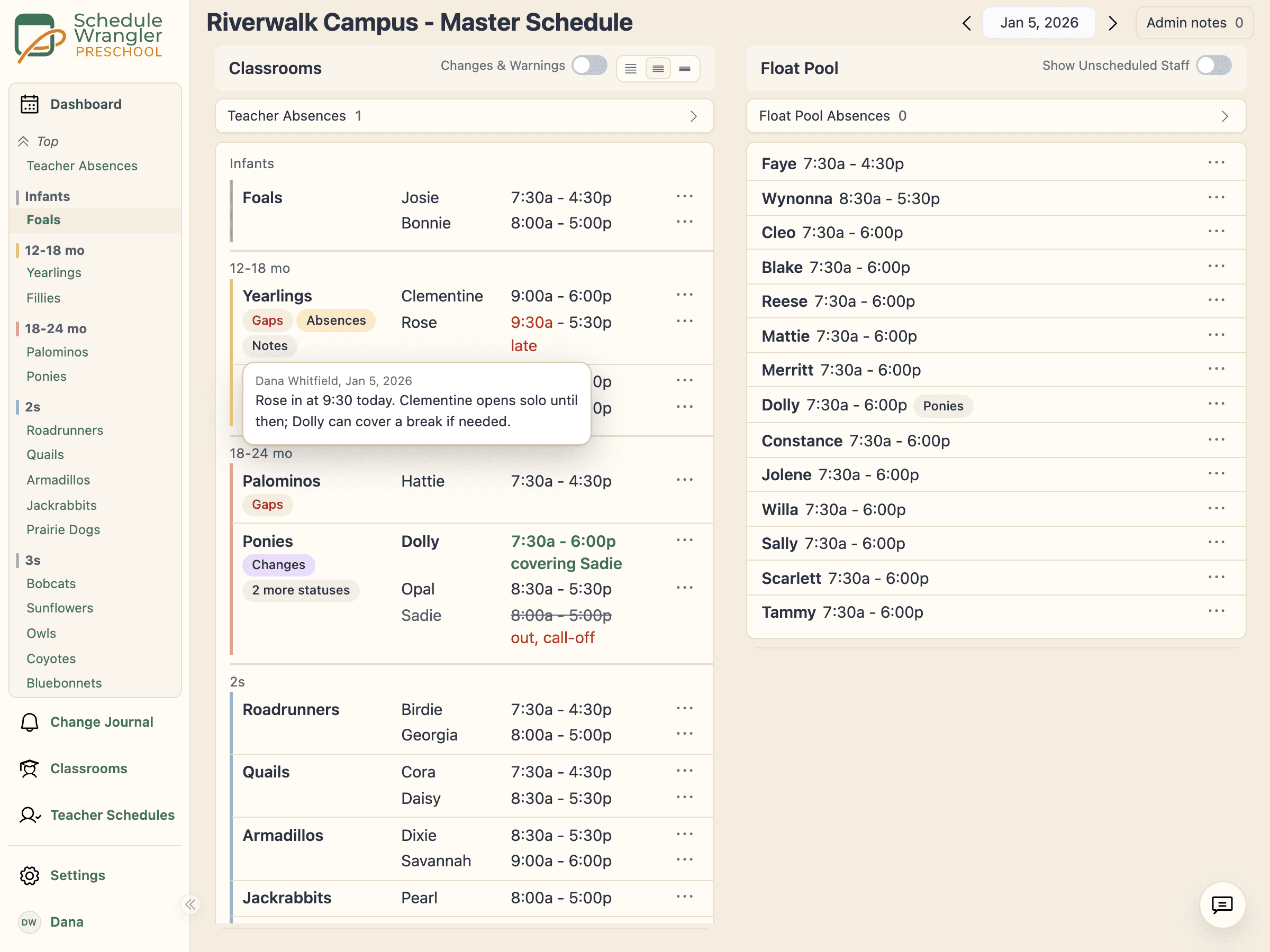
Two kinds of notes, each where the right people will read them. Admin notes ride the dashboard for standing context; classroom notes show on the room's screen, so a late pickup or an allergy reminder reaches the teacher in the room. A coverage change and its reason can arrive together.
- Admin notes ride the dashboard for standing context
- Classroom notes show on the room's own screen
View It Your Way
See your center the way you actually run it.
See your classrooms and staff grouped and sorted in your own organization's structure, the same on every screen. Most tools force one alphabetical list; this matches how you think about your floor.
See your center the way you actually run it.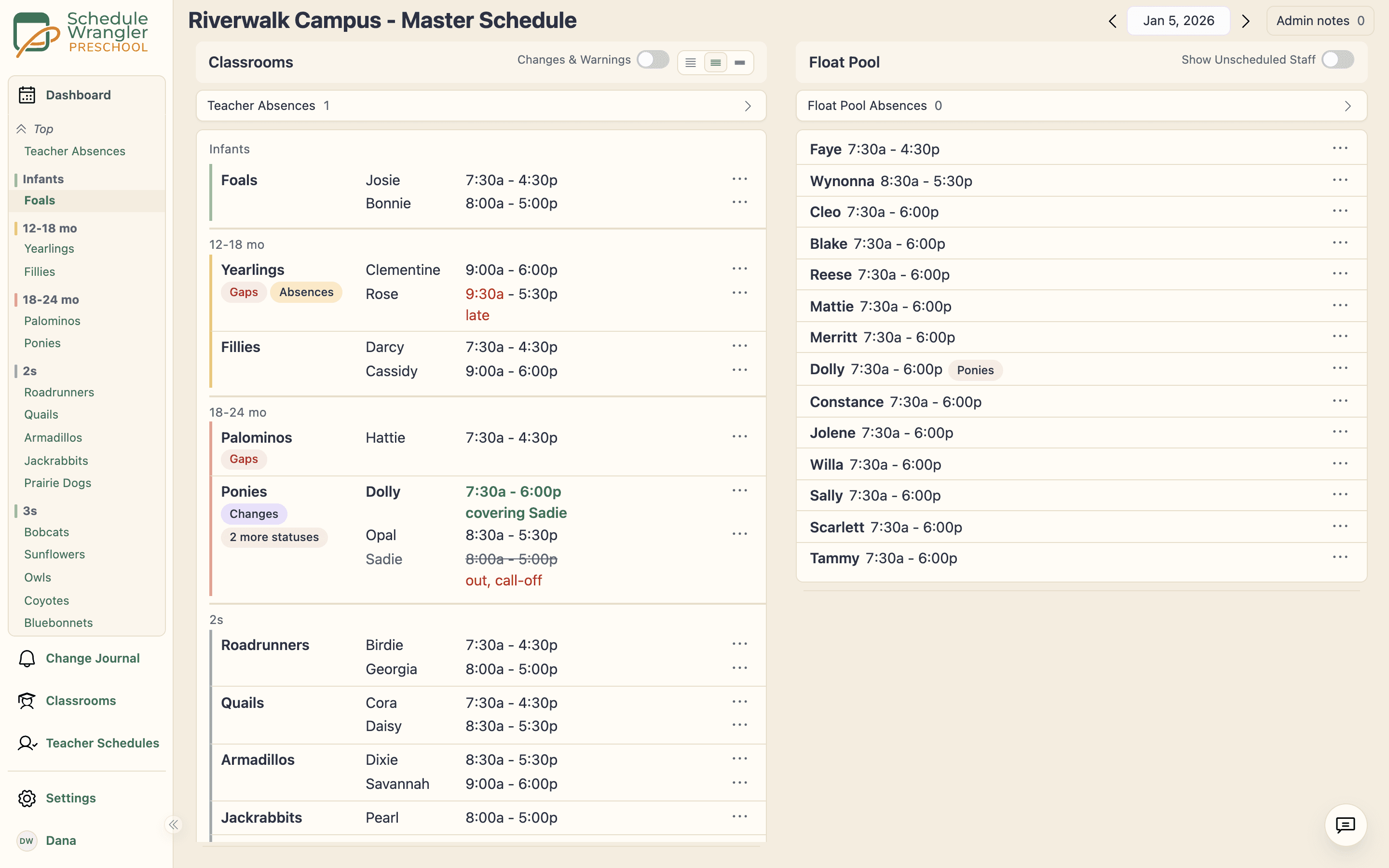
Staffing Minimums and Ratios
Know the moment a room dips below its required staffing.
Set each classroom's required staffing for its age group, and Schedule Wrangler watches every room against it as the day moves. A room that drops short is easy to spot before pickup, before transitions, and before it becomes a problem. Provisional staff are marked and do not count toward coverage, so staying in ratio stops being something you carry in your head all day.
Know the moment a room dips below its required staffing.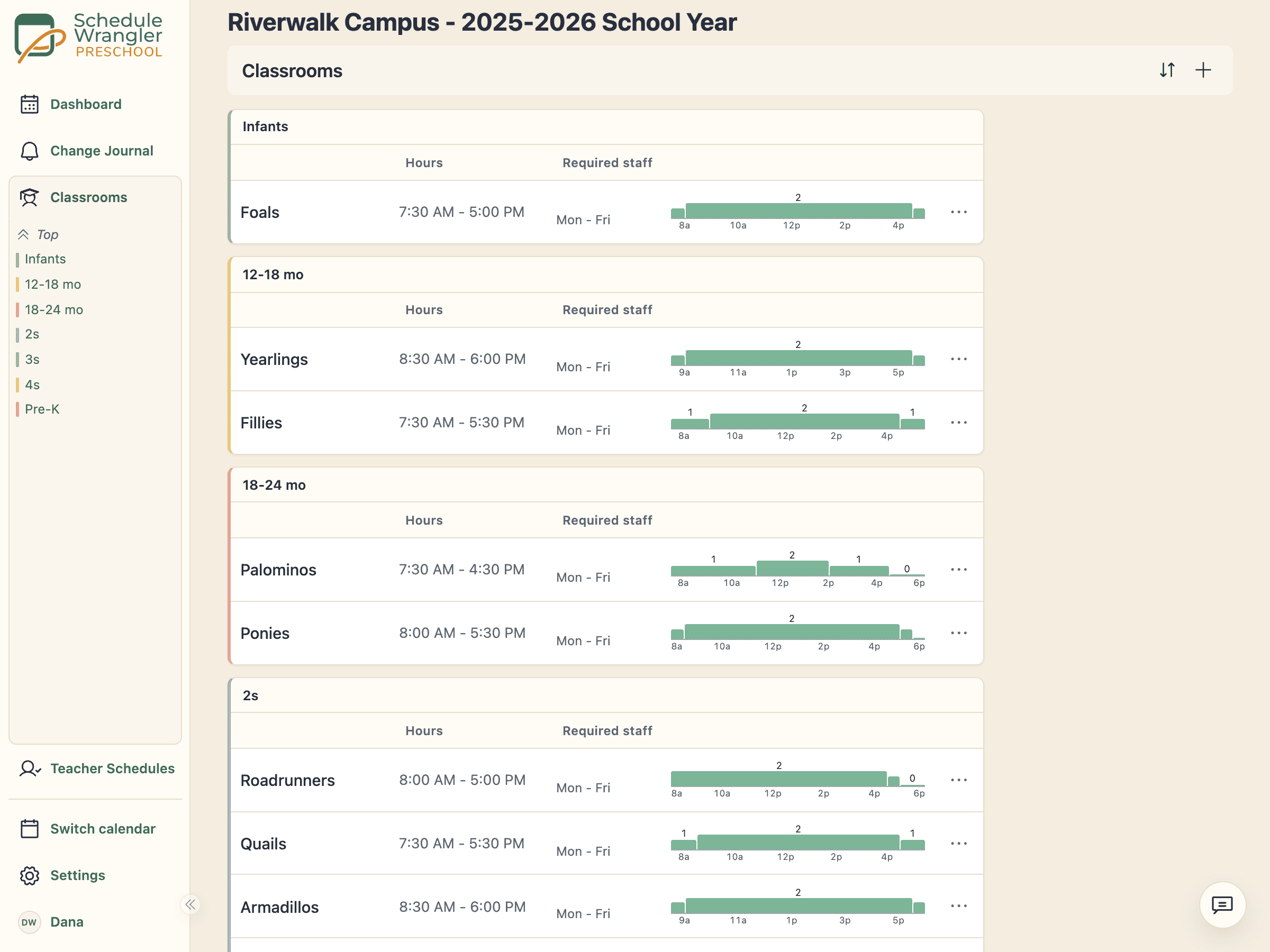
It Grows With You
One site or ten, the same screen.
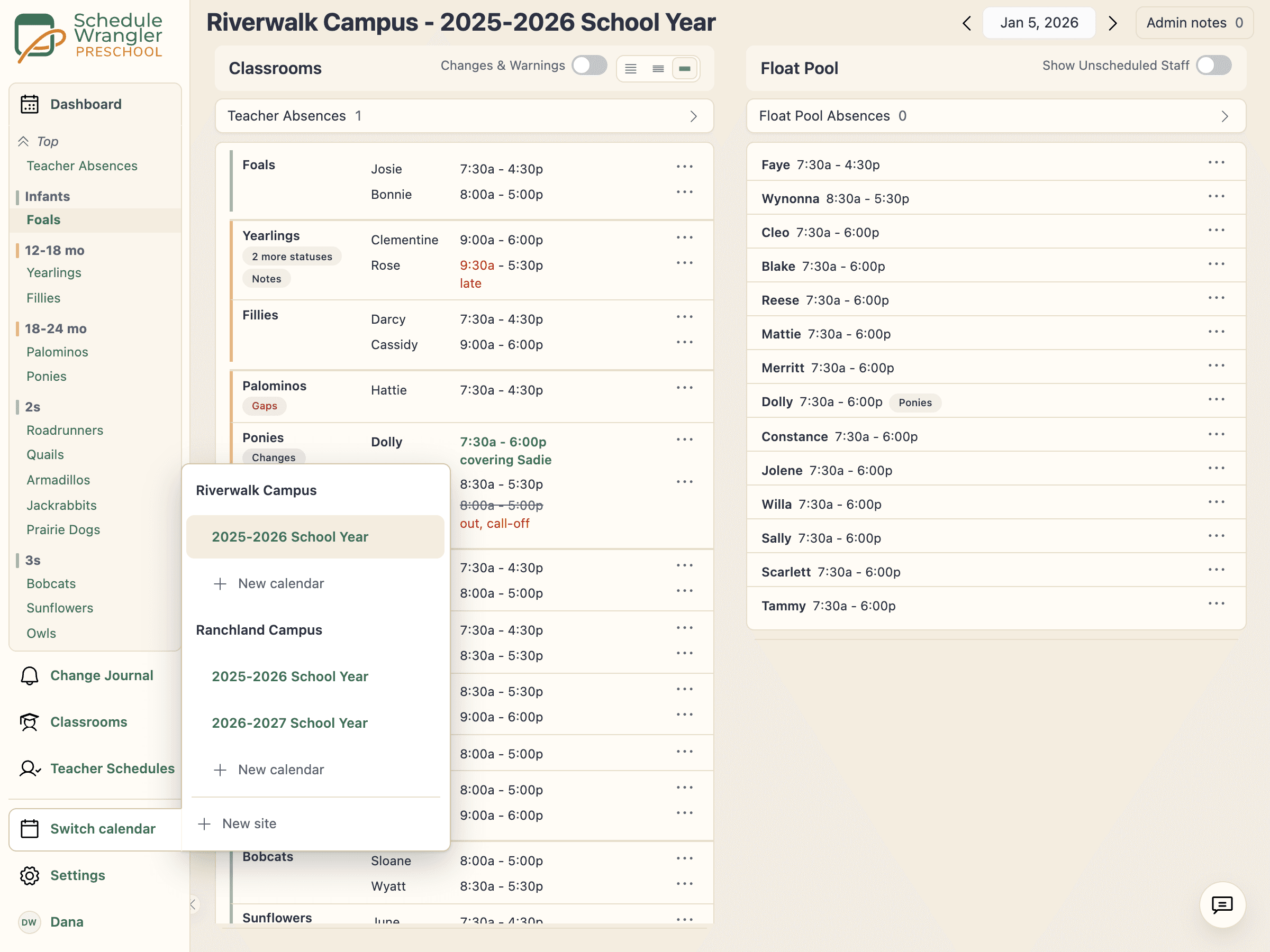
Run one location or ten from one login, each with its own rooms, schedule, and timezone. Move staff between sites and no one gets booked in two places at once. As you add sites and school years, the system grows with you.
- Run one location or ten from a single login
- Move staff between sites with no double booking
- Each site keeps its own rooms, schedule, and timezone
Every Change, Always Reviewable
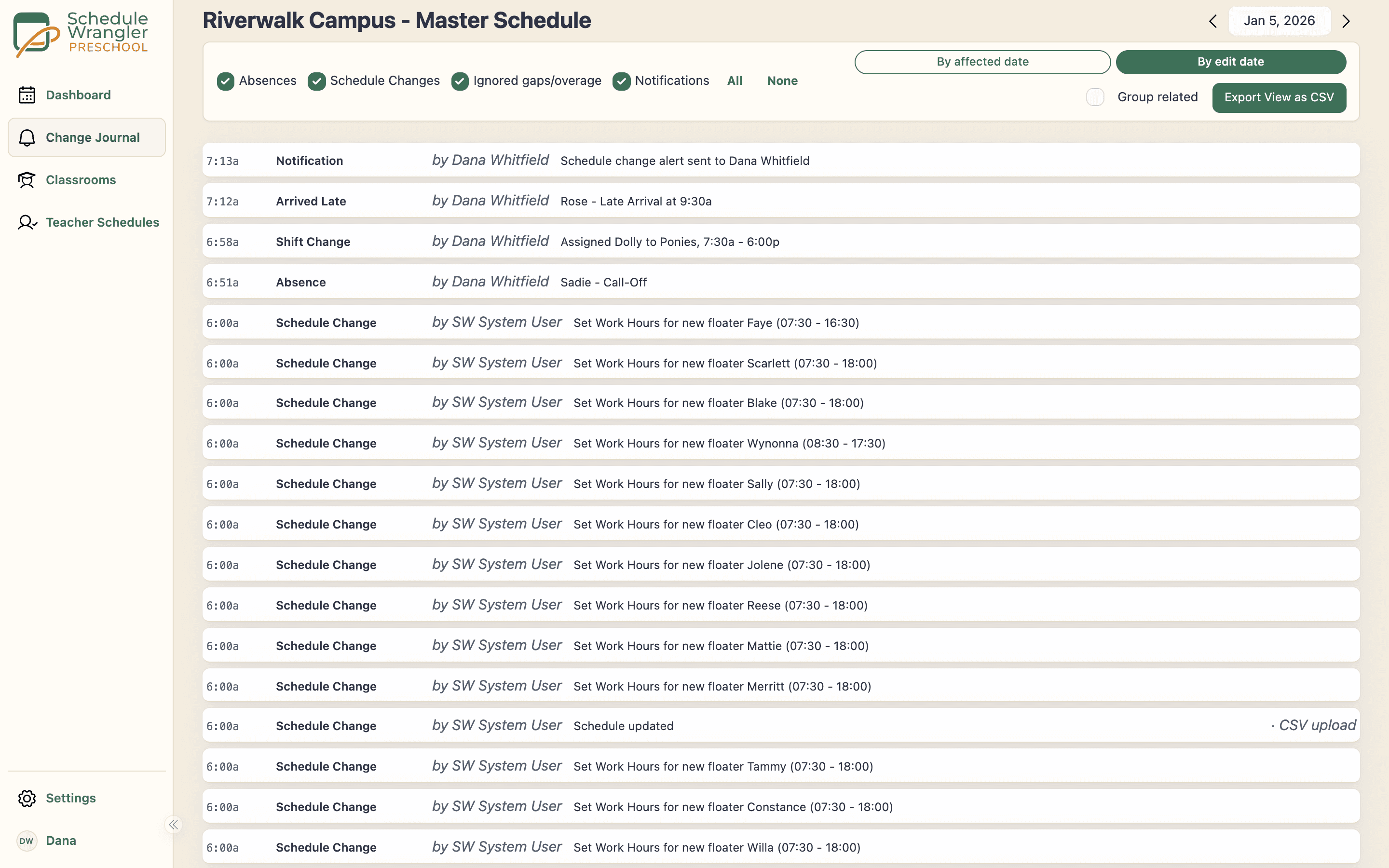
Every change, who made it, ready to export.
When a licensor walks through your door, you should be able to show who was in each room and how staffing held through every transition, not scramble to reconstruct it. Every change lands in one timeline with a timestamp and the name of whoever made it. Filter by type, open any day, and export it to a spreadsheet in seconds. The evidence is already logged.
- Timestamped with the name of whoever made the change
- Filter by type and open any day
- Export the day to a spreadsheet in seconds
What makes preschools different
Why preschool scheduling is its own problem
A single float teacher might cover breaks in three rooms in one day, each room with its own staffing level. Generic schedulers do not model that. These are the cases Schedule Wrangler handles.
Age-specific staffing rules
Infants, toddlers, and pre-k each carry a different required staffing level, and some states tier even further. A tool that only counts heads does not know which head belongs in which room.
Break coverage chains
One float teacher can run a whole day of breaks across four classrooms. If that float calls out, 5 break slots across 4 classrooms go uncovered at once, and each room has its own staffing level.
The daily doc rewrite
Most preschools keep a living schedule document that gets rewritten every morning to reflect who is in, who is out, and who is covering what. That rewrite is a symptom of missing software, not a workflow.
Float pool visibility
Every float teacher has their own availability windows and current assignments, so when a gap opens you can see who is free and where they are already assigned at a glance, before you start texting.
Nap transition staffing
During nap, some rooms drop to a single teacher, which frees other staff to cover breaks elsewhere. That opening lasts about 90 minutes and is easy to miss or mismanage.
See who covered each room, and when
Every absence, reassignment, break, and note is timestamped as the day happens, so the record of who was in each room is always there. When a licensor asks, you show it instead of reconstructing it.
Common questions
How preschool scheduling works in Schedule Wrangler
- What happens when a teacher calls out at 6 AM?
- Schedule Wrangler shows the impact right away: which classrooms are affected, which time slots go uncovered, and which floaters in the TA pool are free. Reassign coverage with a tap and the right people get notified automatically, instead of you working down a text list and waiting for replies.
- Can Schedule Wrangler handle break coverage chains?
- Yes. This is one of the things built specifically for preschools. Assign a float teacher to cover toddler breaks from 11am to 1pm, then pre-k from 1pm to 3pm. If that float calls out, Schedule Wrangler shows which rooms go uncovered and which floaters are free. No mental math, no frantic texts.
- How do I keep each room covered as staff move around during the day?
- Schedule Wrangler keeps each classroom's staffing status in view as staff move between rooms for breaks, transitions, and call-outs. Set the required staffing level per room, including age-specific levels for infants, toddlers, and pre-k, and a room that drops short is easy to spot before it becomes a problem. It all stays visible on one screen, without a separate spreadsheet.
- Can I see who was assigned to each room at any point in the day?
- The operations journal logs it as the day happens: exactly who was assigned to each room at any time, and how staffing held across breaks and transitions. The record is already there, so when a licensor asks there is nothing to reconstruct.
- How much time can preschool directors save with Schedule Wrangler?
- The coverage coordination is what goes away: rebuilding the daily schedule doc, texting floaters, and chasing down who covers which break become a few taps on one screen. Directors also say the bigger win is the stress that leaves the morning, and the steadier day the classrooms get because of it.
- Does Schedule Wrangler use AI?
- Yes, in the Scheduling Assistant (and quick entry), and when it reads a schedule file you upload in your own layout. When you use them, your message, your school's roster and schedule, and the other details listed in the privacy policy go to a third-party AI provider. The assistant proposes changes as cards; you review and apply them, and a single full-day call-out for today can be undone. The board itself and its gap and staffing flags follow the rules you set. These stay off until an administrator at your school turns them on, and any administrator can turn them off. The privacy policy lists exactly what is shared.
- What size preschool is Schedule Wrangler designed for?
- Schedule Wrangler works for preschools from 4 classrooms to 25 and up. The pilot center runs 22 classrooms and about 50 staff through it daily. Pricing starts at $19/mo and scales with your needs.
Stop rebuilding that doc every morning.
Book a walkthrough and watch Schedule Wrangler cover a call-out: the gap opens, a teacher moves into it, and the room confirms on its tablet.
Request a Demo